
How I Automated Video Express 3 Using Python & Microsoft Playwright
Creating AI-generated videos across multiple web platforms can involve repetitive GUI navigation: logging in, filling prompt text boxes, adjusting dropdown menus, and waiting for generations to complete.
To speed up this workflow, I built a Python script that fully automates interaction with Video Express 3.0. Inspired by Paul Ponna's automation tutorials using ChatGPT and Claude, I set out to implement a robust, headless browser solution tailored to my own workflow using Microsoft’s Playwright framework and Tkinter.
1. The Goal & Architecture
The objective was simple: collect the required video parameters via a minimal desktop GUI, hand over control to an automated browser script, and let it perform all repetitive web interactions hands-free.
The solution consists of two primary modules:
-
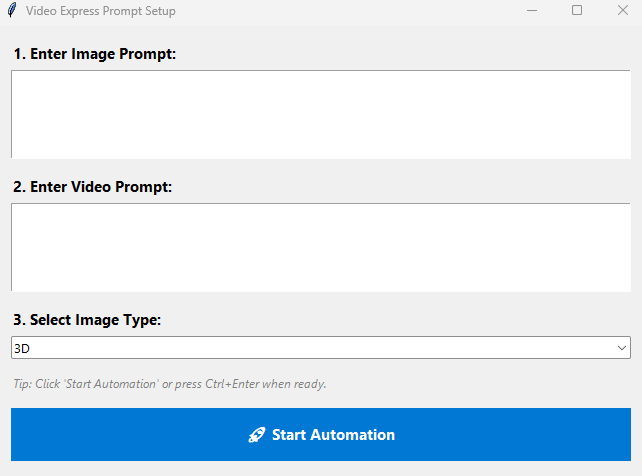
Tkinter Prompt Setup GUI: A lightweight desktop form that asks for:
-
Image Prompt (e.g., scene setting and characters)
-
Video Prompt (e.g., character actions and camera movement)
-
Image Style Selection (3D, Cinematic/Photorealistic, 2D, etc.)
-
-
Playwright Automation Workflow: A script that launches a Chromium browser instance, logs into Video Express 3.0, handles pop-ups or overlays, inputs prompt text, sets generation options, and triggers video creation automatically.
2. Step-by-Step Breakdown of the Script
Step 1: User Interface (Tkinter)
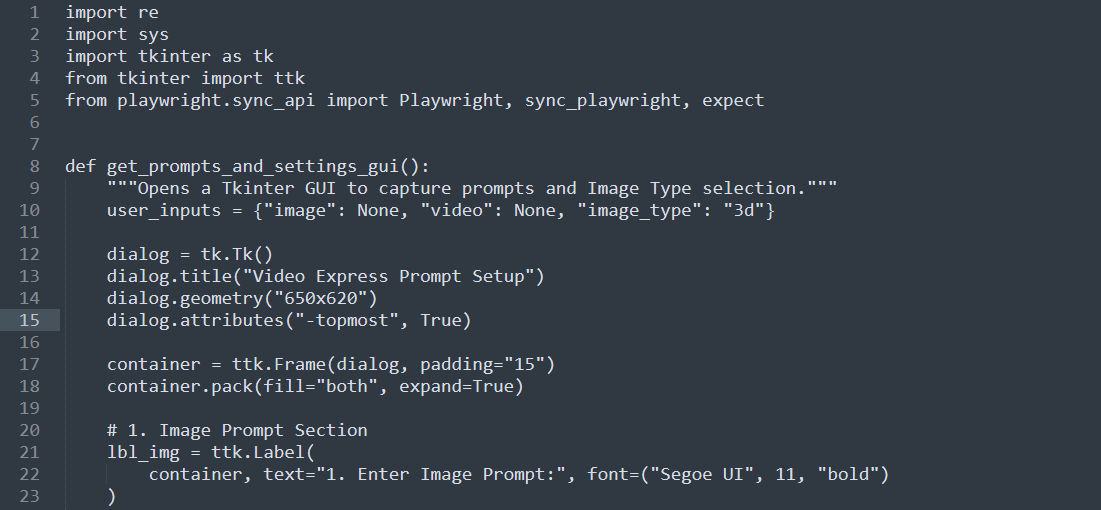
Before opening the browser, a clean prompt setup window pops up. This allows all textual inputs and style options to be specified upfront, avoiding manual typing inside the web browser during generation.
Step 2: Browser Initialization & Login
Using playwright.sync_api, the script opens a browser session (maximized for visibility) and navigates directly to the login page. It inputs credentials into the email and password fields, then submits the form.
Step 3: Handling Overlays & Pop-ups
Web apps frequently display update modals or user notifications. The script automatically checks for common UI overlays and closes them before proceeding to prevent click-blocking errors.
Step 4: Injecting Prompts & Generating
The script navigates to the "Create Video From Prompt" section, populates the image and video prompt fields, selects the desired style from the dropdown, enables required options (e.g., Advanced Mode), and clicks "Create Video."
Step 5: Queueing & Results
In my tests, the script was configured to trigger multiple video generations sequentially. Once queued, you can review generated outputs directly in the application's media library.
3. What’s Next for This Automation?
This script serves as a proof of concept for complete, end-to-end video creation. Future updates will focus on:
-
Multi-Scene Storyboarding: Prompting for scene counts and automatically generating sequential scenes.
-
Frame Continuity: Automating first-frame/last-frame transitions by pulling the final frame from a previous clip to use as the seed image for the next, producing seamless long-form AI videos.
Explore More Free Web Tools
Interested in web utilities, video editing tools, and privacy-focused scripts? Check out the software collection hosted at https://johncouto.com/tools/welcome/, featuring browser-based tools like QR code generators, icon builders, and a browser-based video editor app at http://preditor.johncouto.com—all running locally inside your browser with no paywalls or data collection.